
Start here: your first 10 minutes
Watch a sample candidate, make an interview, send the link, and review your first real answers.
Open DeepHireIn the app: The Get started in 3 steps card on Candidates (trial accounts).
At a glance
- Time
- About 10 minutes
- Trial
- 14 days, no card for the first day
- Sample job
- 1 job, 3 sample candidates
Good to know first
- After the first 24 hours of a trial, you need a card on file to watch real candidates. Sample candidates stay free.
- Opening a real candidate sends them one email that the hiring team opened their interview.
1. Watch a sample candidate (2 minutes)
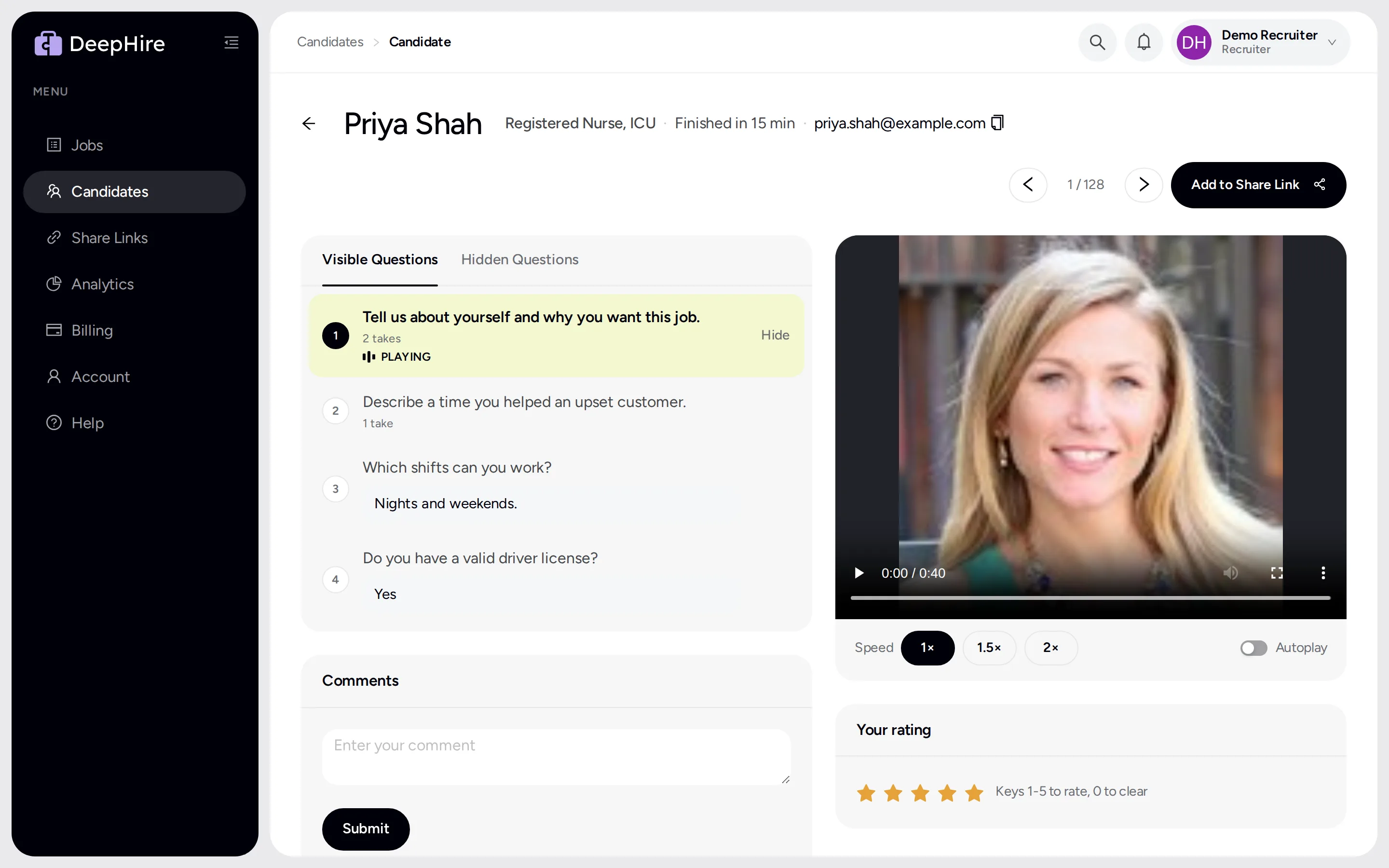
Your trial has a sample job with 3 sample candidates. Open one from Candidates. Press Space to play, 1 to 5 to rate, and J for the next candidate. See Review candidates fast.
2. Make your interview (3 minutes)
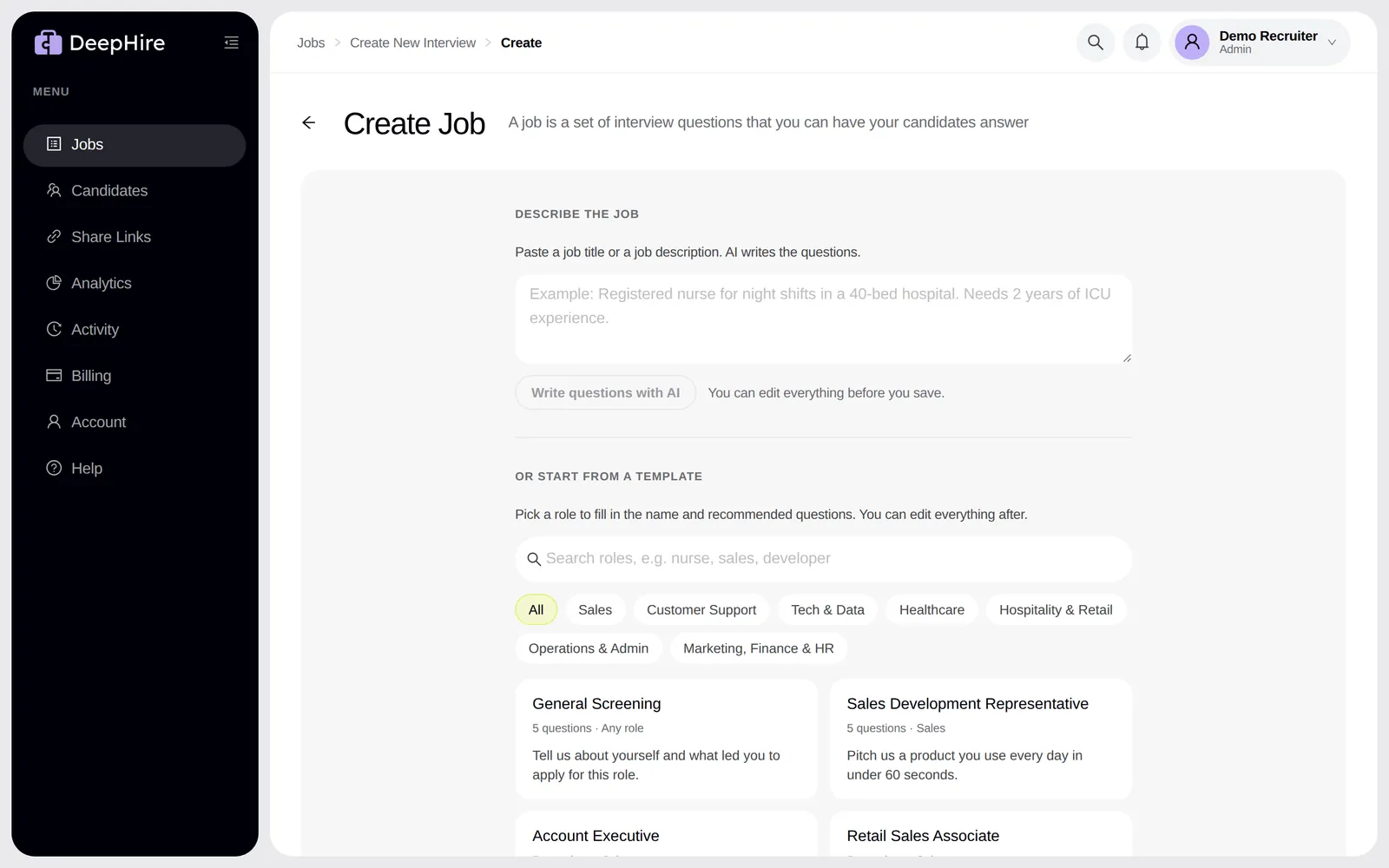
Go to Jobs, then Create Job. Paste a job description and click Write questions with AI, or pick a template. Keep 3 to 5 questions. Click Create Job. See Create a job.
3. Send the link (1 minute)
Each job has one link. On Jobs, the copy icon copies it. Paste it in an email, a text, or a job post. Or click Invite to email it from DeepHire. Open the link yourself first to see what candidates see.
4. Review your first real candidate
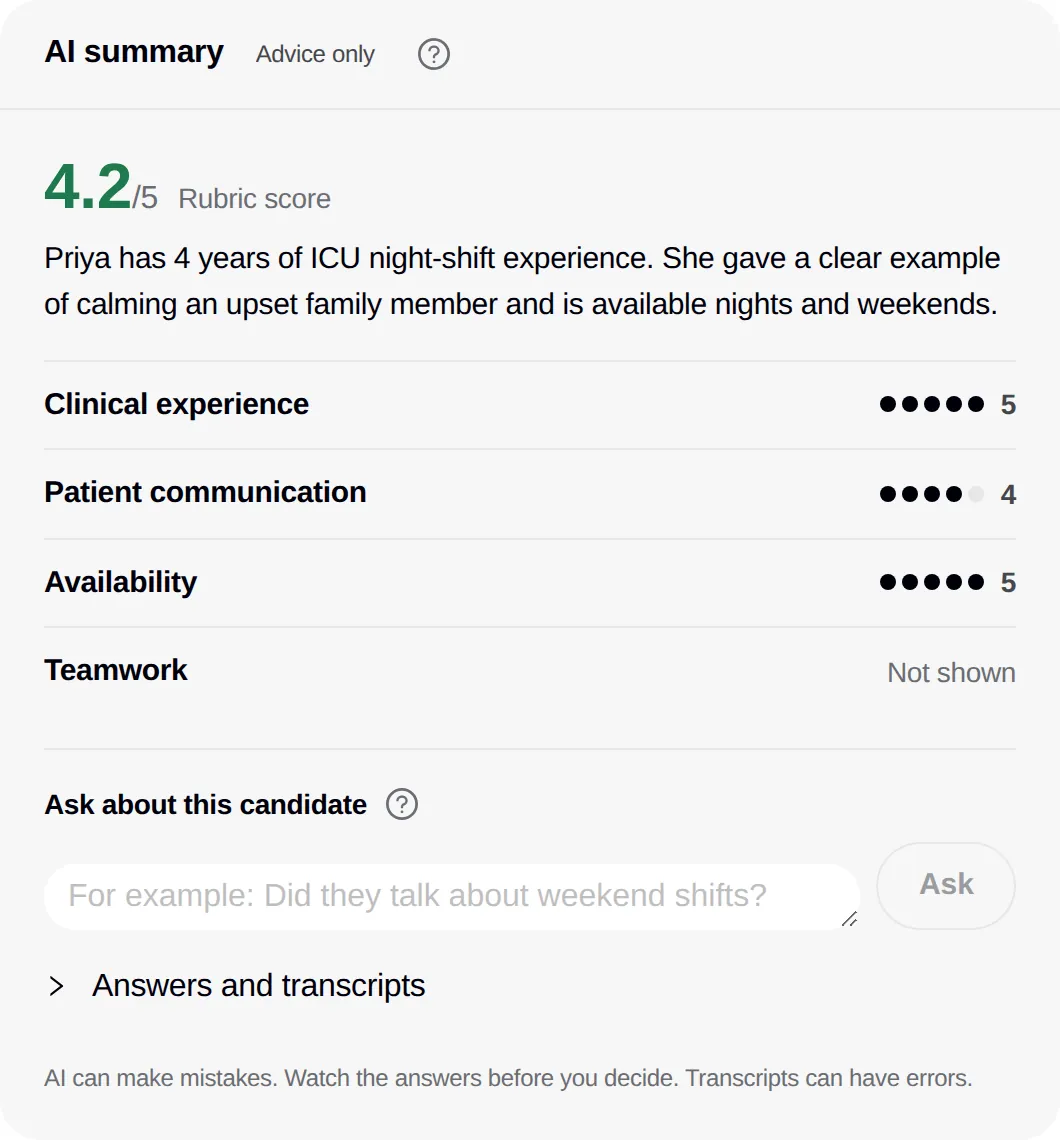
You get an email when a candidate finishes. About 15 minutes later, the AI summary is ready. Read it, then watch the answers that matter.
5. Share the best ones
Click Add to Share Link on a candidate, name the link, and send it to your client. They need no account. See Share links.
6. Check references (optional)
Candidates can add references when they finish. Or click Add reference on a candidate. See Reference checks.
Every page has a ?
In the app, a ? next to a feature explains it in a few lines and links to its page here.
Updated November 9, 2026